Case studies

Four setups TreStack Timer is built for.

Four planned walkthroughs, written from the kinds of store the timer is designed around. Each one describes the store, the problem in a merchant's own terms, the timer and settings that answer it, and what to watch to decide whether it worked.

No logos, no percentages, no named stores, and no customers yet.

A lift figure from someone else's store tells you what happened on their traffic, their price point, and their season. It is not a forecast for yours, and repeating it as one would be dishonest. Store names are left out for the same reason we would leave yours out: the setup is the useful part, not the label on it.

These are walkthroughs rather than case studies, because TreStack Timer only reached the Shopify App Store in October 2026 and we have no store results we could show you. Read the one closest to yours, copy the settings, and measure on your own storefront.

  1. Pick one number you already trust

    Whatever you check in Shopify analytics on a Monday morning. One familiar number beats four new ones you have no feel for yet.

  2. Write down the date you published the timer

    Put it somewhere you will find it in a month. Without that date you cannot tell a change from a season.

  3. Compare like for like windows

    Two weeks against the two weeks before, not against your best fortnight of last year, and never across a sale you also ran.

  4. Give it one full cycle before judging

    A daily cutoff has to meet a few normal weeks. A launch sale has to reach its end date. Judge after the slowest part of the loop has run once.

Four kinds of store, four setups.

Apparel store with a launch sale

The launch price ends on Sunday night and most visitors never find out.

A new collection goes live with an introductory price for one week. The end date is in the launch email and nowhere on the store, so a visitor arriving from a search or a social post has no way to know the price is about to change.

Timer
Top or bottom bar, Free plan
Settings to start with
A fixed end date entered in the shop timezone, the bar across the top of every page with the cart page excluded, a button that opens the new collection, and the timer set to hide when it ends, so it unpublishes itself without anyone opening the app.
What to watch
Views, clicks, and closes for the bar in the app analytics, next to orders from the new collection in Shopify analytics for the same week.
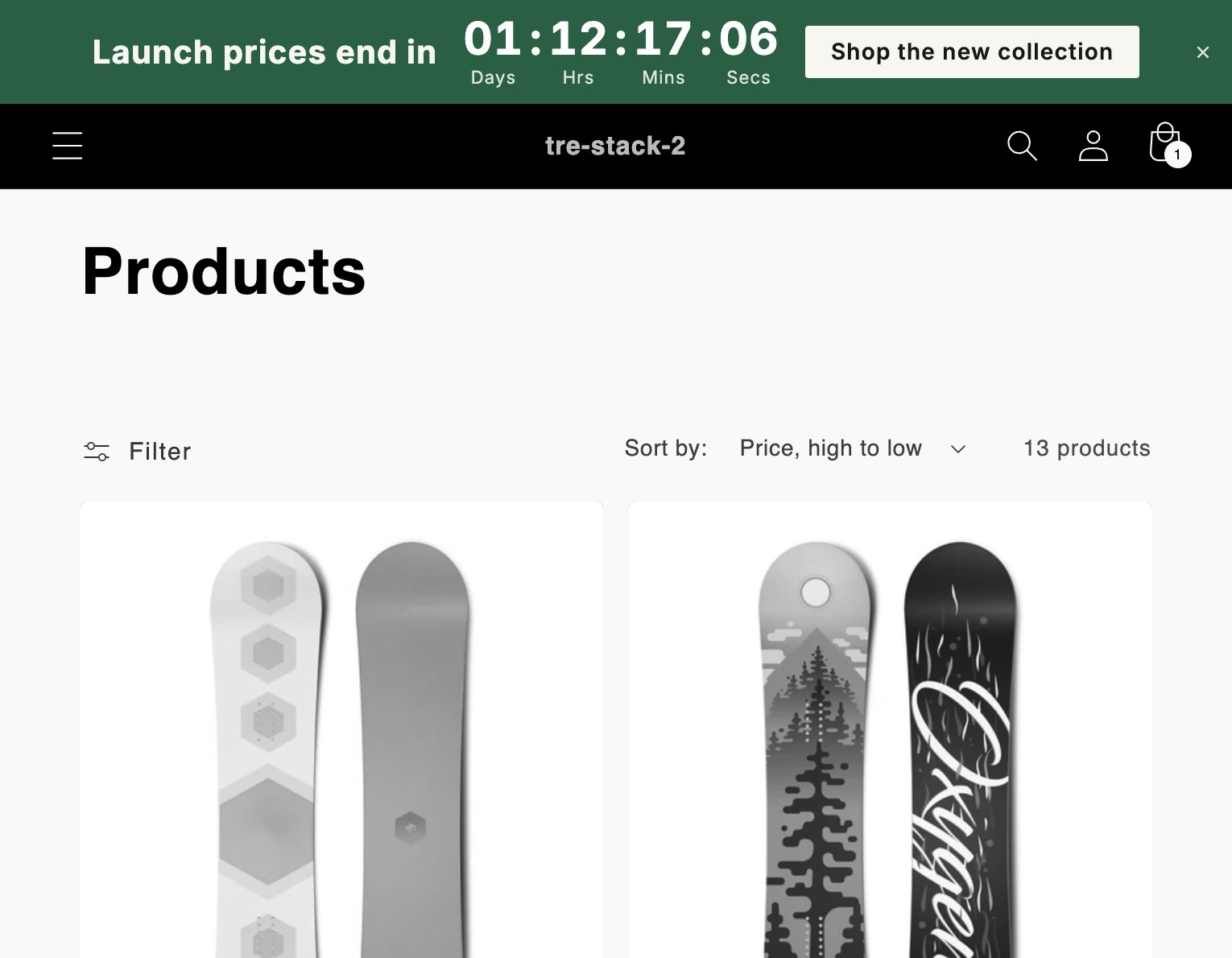
A green bar across the top of a store product listing, reading Launch prices end in, with a countdown and a Shop the new collection button. The store is shown in grayscale

Coffee roaster with a daily dispatch cutoff

Orders placed before two ship today, and nobody knows it is two.

Beans are roasted and packed each morning and the courier collects at a fixed time on weekdays. The cutoff is written in the shipping policy, three clicks away from the product page, so a buyer at half past one has no reason to finish the order now rather than tonight.

Timer
Product page timer, Starter plan
Settings to start with
A recurring window on weekdays in the shop timezone that ends at the cutoff, placed below the Add to cart button on all products with gift cards excluded, and a custom message outside the window saying the next dispatch day.
What to watch
Orders placed in the hour before the cutoff, compared with the same hour in the two weeks before the timer went up, and whether the when will it ship emails slowed down.
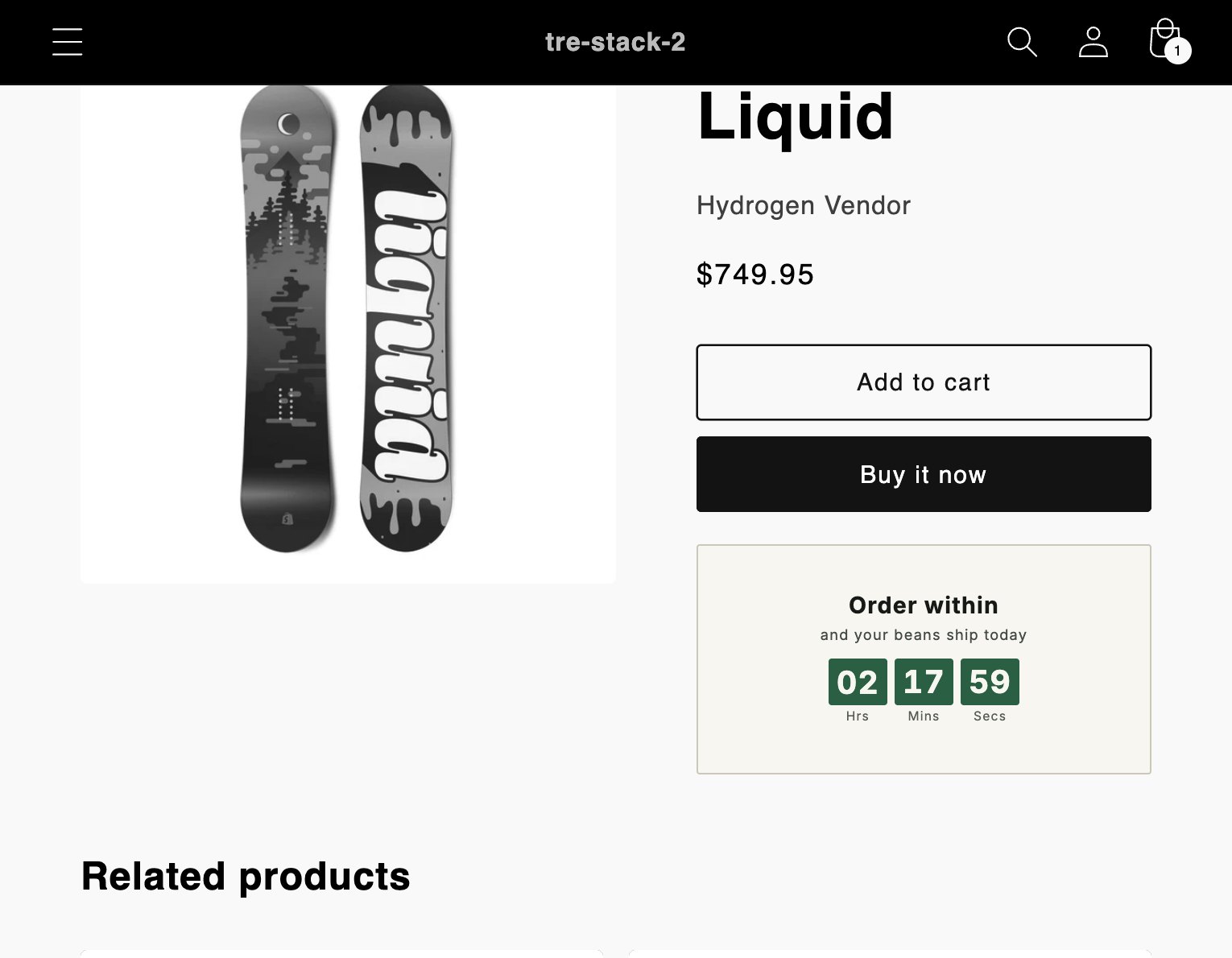
A product page in grayscale with a timer below the Add to cart and Buy it now buttons, reading Order within, and your beans ship today, the hours, minutes and seconds in green boxes

Print studio selling small batches

People fill a cart during a drop and come back the next day to find it sold out.

Each run is a small edition that goes on sale at a set time. Shopify does not hold stock for an item sitting in a cart, so a buyer who leaves a full cart for later is often disappointed, and the studio writes the same apology after every drop.

Timer
Cart timer, Growth plan
Settings to start with
A per-visitor countdown of twenty minutes on the cart page and in the cart drawer, shown only while the cart has items, with text that says plainly the batch is small and items are not held. At zero it hides rather than emptying the cart, because the store does not actually take anything back.
What to watch
Completions in the app analytics, which show how often a cart timer ran out with the cart still full, next to how many apology emails each drop produced.
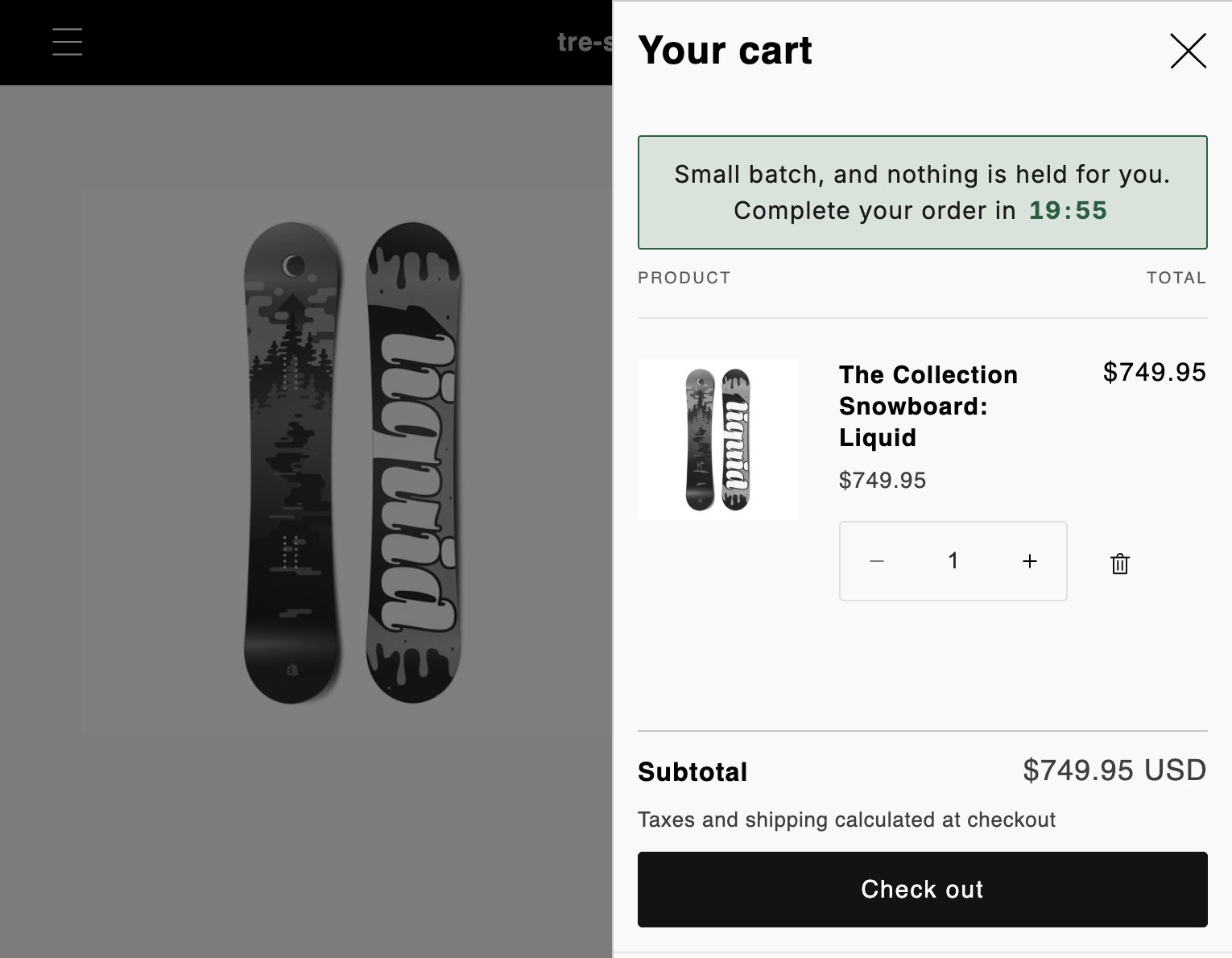
A cart drawer open over a grayscale product page, with a green edged line at the top reading Small batch, and nothing is held for you. Complete your order in 19:55

Homeware store sending a weekend sale email

The email says the sale ends Sunday, and people open it on Monday.

The sale goes out as one campaign on Friday morning. An email is read hours or days after it is sent, so a line saying ends Sunday is only as good as the day it is opened, and late readers click through to full prices without knowing why.

Timer
Email timer, Growth plan
Settings to start with
A fixed end date matching the sale, the image snippet from the app pasted into the campaign in Shopify Email or Klaviyo, and a top bar on the store with the same end date so the email and the storefront agree. The email timer stays in the app until well after the campaign, because deleting it breaks the image in emails already sent.
What to watch
Clicks from the campaign in the email tool, and views and clicks for the matching bar in the app analytics, across the days either side of the end date.
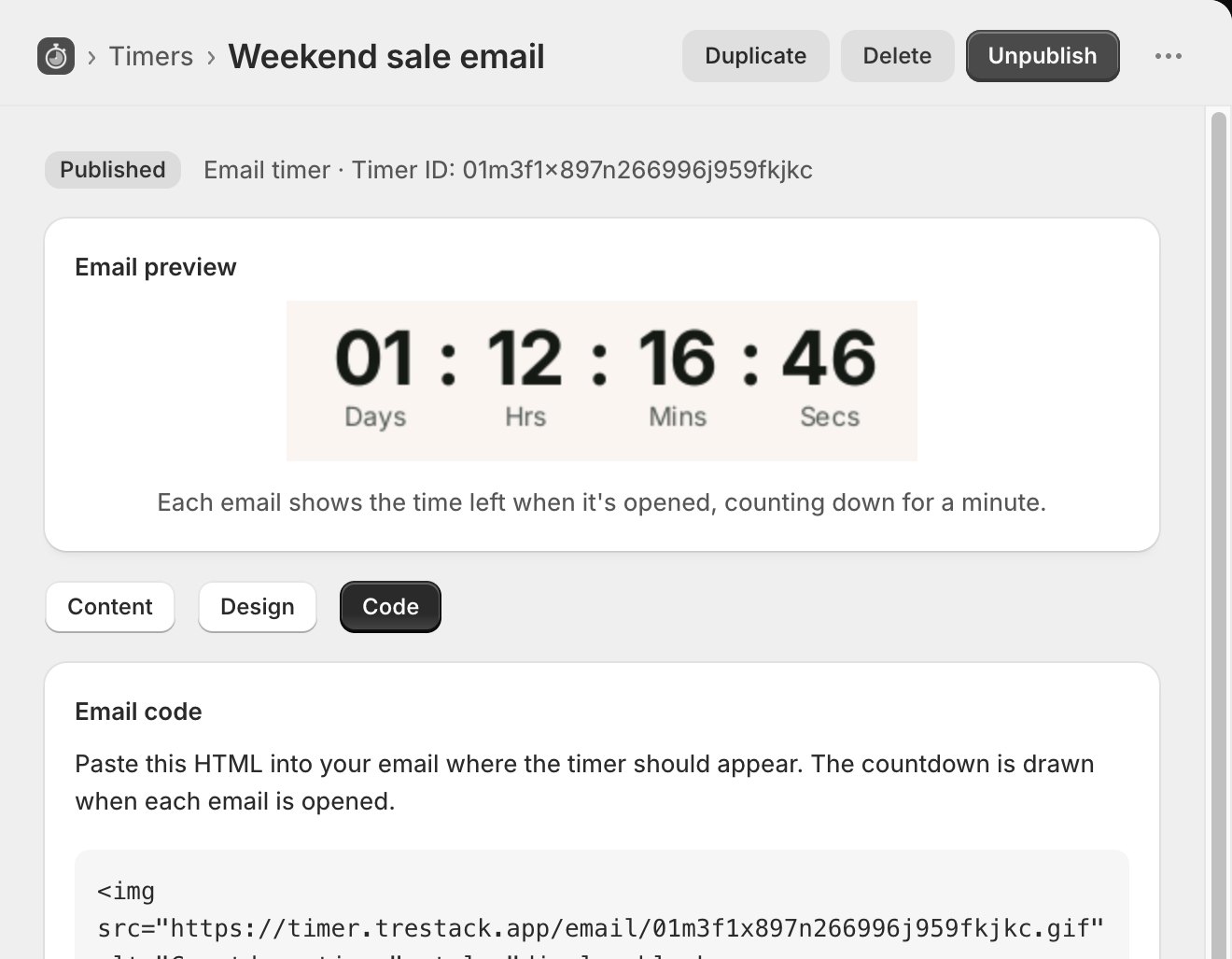
The email timer in the TreStack Timer admin, in grayscale: a preview of the countdown image above the Code tab and the HTML snippet to paste into an email
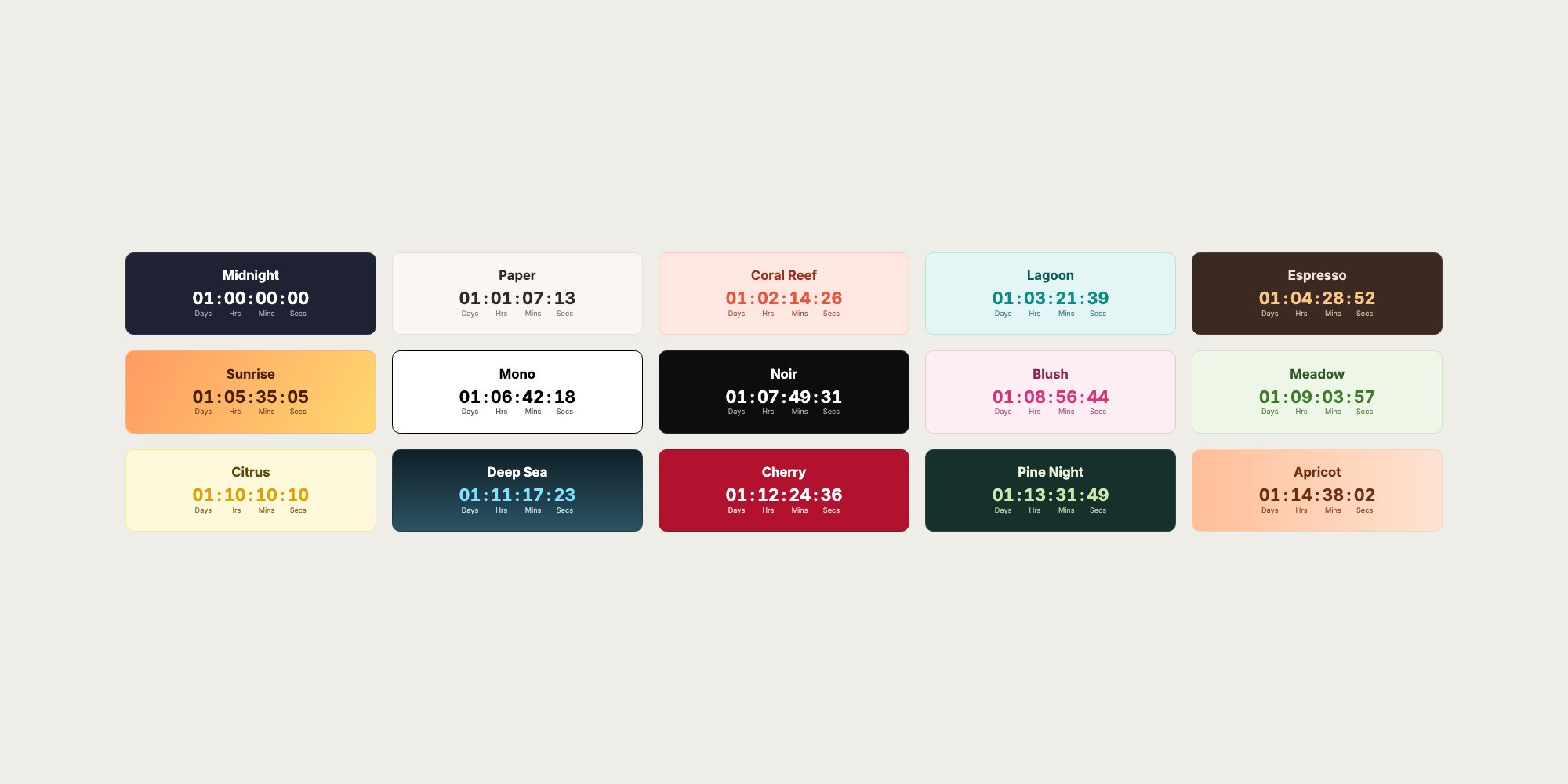
TreStack Timer's colour presets side by side, each a small countdown titled with its preset's name

Your store is the only case study that counts.

Once TreStack Timer is on the Shopify App Store: install it, turn on the app embed, publish one timer, keep the baseline you wrote down, and remove it if the month does not convince you. Nothing is written into your theme files either way.