TreStack Timer

Countdown timers for product pages, a store bar, collections, the cart, and your emails.

Five timer types, each created and styled in the app admin and shown on your storefront through a Shopify app embed. Nothing is written into your theme files. TreStack Timer is on the Shopify App Store.

Free plan

Product page and bar timers

1,000 timer views a month at $0. Paid plans start with a 7 day free trial, billed by Shopify.

Five places a countdown can sit.

Each type is created and styled on its own, so the bar across the store and the timer under Add to cart can say different things.

  • Free

    Product page

    Below the Add to cart button, or anywhere on the product page through an app block.

  • Free

    Top or bottom bar

    A bar across the store, at the top, at the bottom, or sticky. Shoppers can close it.

  • Starter

    Landing page

    At the top of collection pages, or on the password page.

  • Growth

    Cart

    On the cart page and in the theme's cart drawer, only while the cart holds your products. It always counts per visitor, and it can remove your products from the cart when it runs out.

  • Growth

    Email

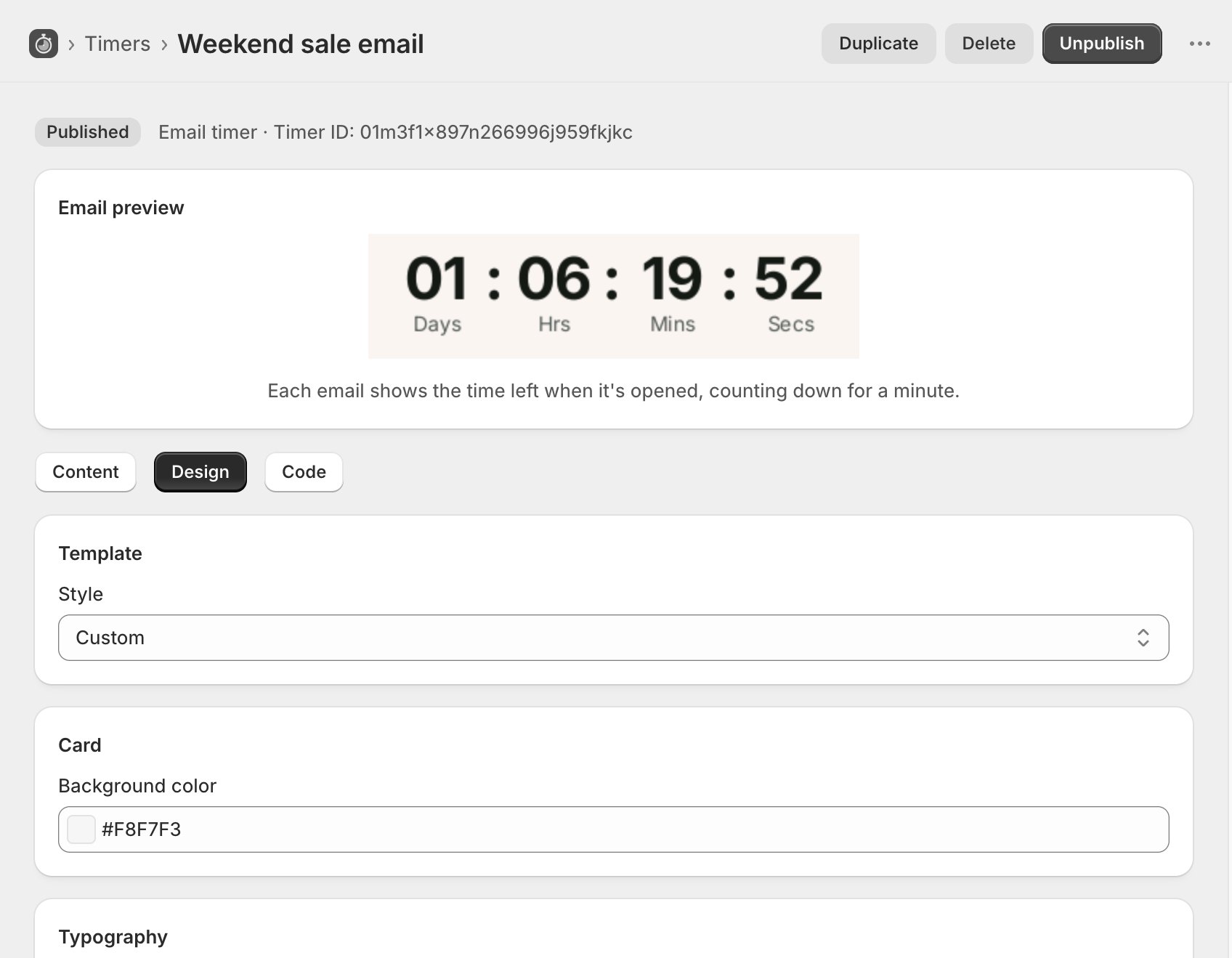
    An animated image in marketing emails, rendered when the email is opened.

Four ways to count down, and a decision for zero.

Fixed end date
A date and a time, entered in your shop's timezone. Everyone sees the same deadline.
Per visitor
A number of minutes that starts when each visitor first sees the timer, and carries on across page loads in that visitor's browser. The cart timer always uses this mode.
Recurring Starter
Daily or weekly windows in your shop's timezone. A window can cross midnight.
Scheduled start Starter
Set a timer up now and have it appear later.
At zero
You choose: hide the timer, restart it for a per visitor countdown, show a message you write, or leave it at zero. Restarting is never the default. A cart timer can also remove your products from the cart.
Cleanup
An ended timer set to hide is unpublished automatically within a minute. You do not have to open the app.
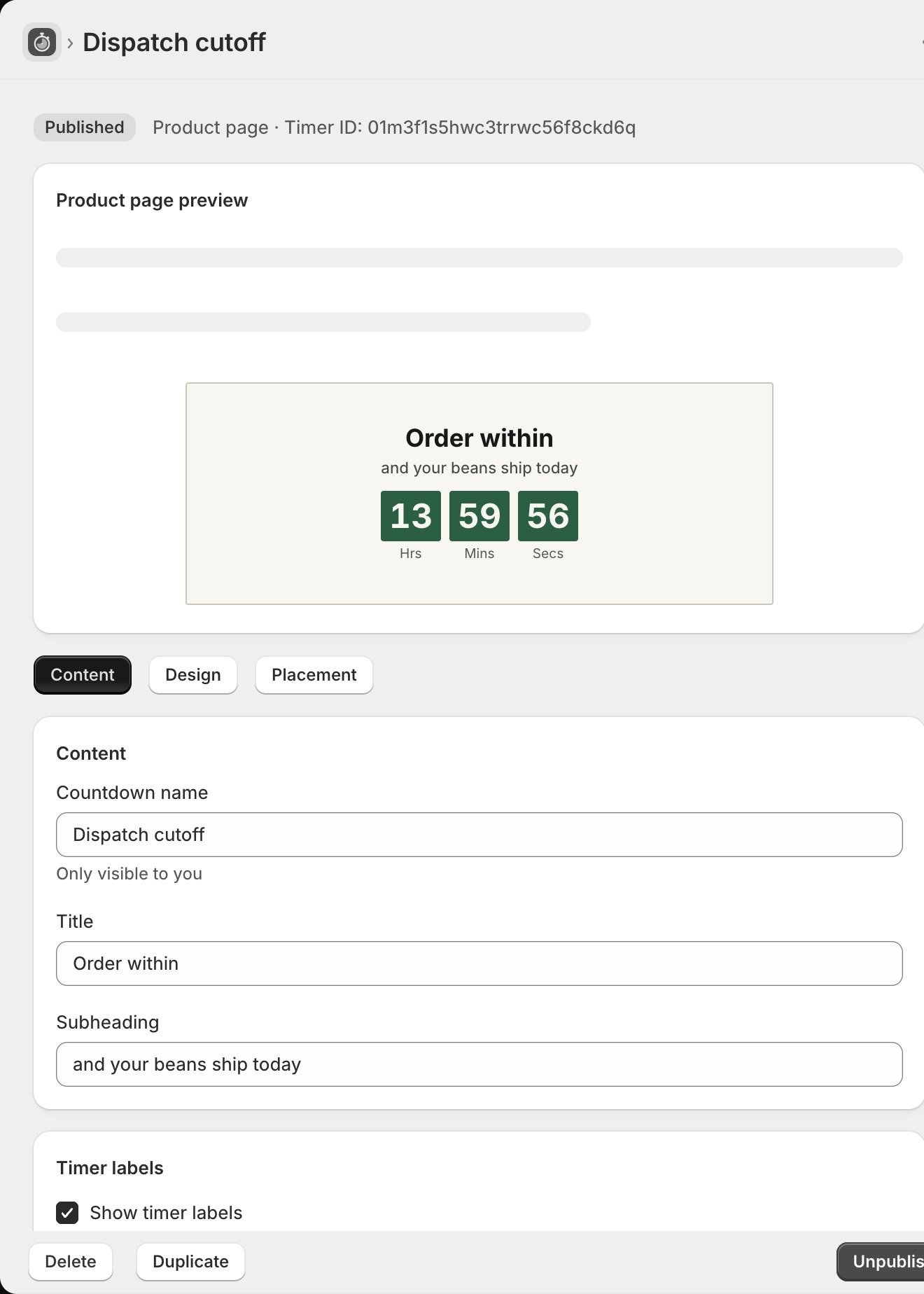
The TreStack Timer editor in grayscale, on the Content tab of a product page timer, with the live preview of the countdown in green boxes above the fields
Fixed and recurring timers count against your shop's timezone.

Show it where it applies, and nowhere else.

Each timer type has its own targeting. A bar shown on every page can still skip pages by page type, URL fragment, or path keyword.

Product tag targeting, country targeting, and translations need the Growth plan.

Product timers
All products, with exclusionsChosen productsProducts in chosen collectionsProduct tagsCustom position
Top or bottom bar
Every page, with exclusionsHome page onlyAll productsChosen productsProducts in collectionsAll collection pagesChosen collection pagesCustom position
Landing timers
All collection pages, with exclusionsChosen collectionsPassword pageCustom position
Countries
Only visitors in chosen countriesCountry supplied by Shopify
Languages
Timer text per store languageFalls back to the store's language

How it looks, how it performs, and how it travels by email.

Design

The preview is the storefront

Three layouts, Standard, Balanced, and Inline. Twenty colour presets designed in house, or your own colours with transparency, gradient backgrounds, and background images, either uploaded to your store's own Shopify Files or picked from a suggested library. Use your theme's font or a bundled web font, set the labels for days, hours, minutes, and seconds, and add a button or make the whole bar clickable on bar and landing timers.

The editor's live preview runs the same rendering code as your storefront, so what you see while editing is what shoppers get.
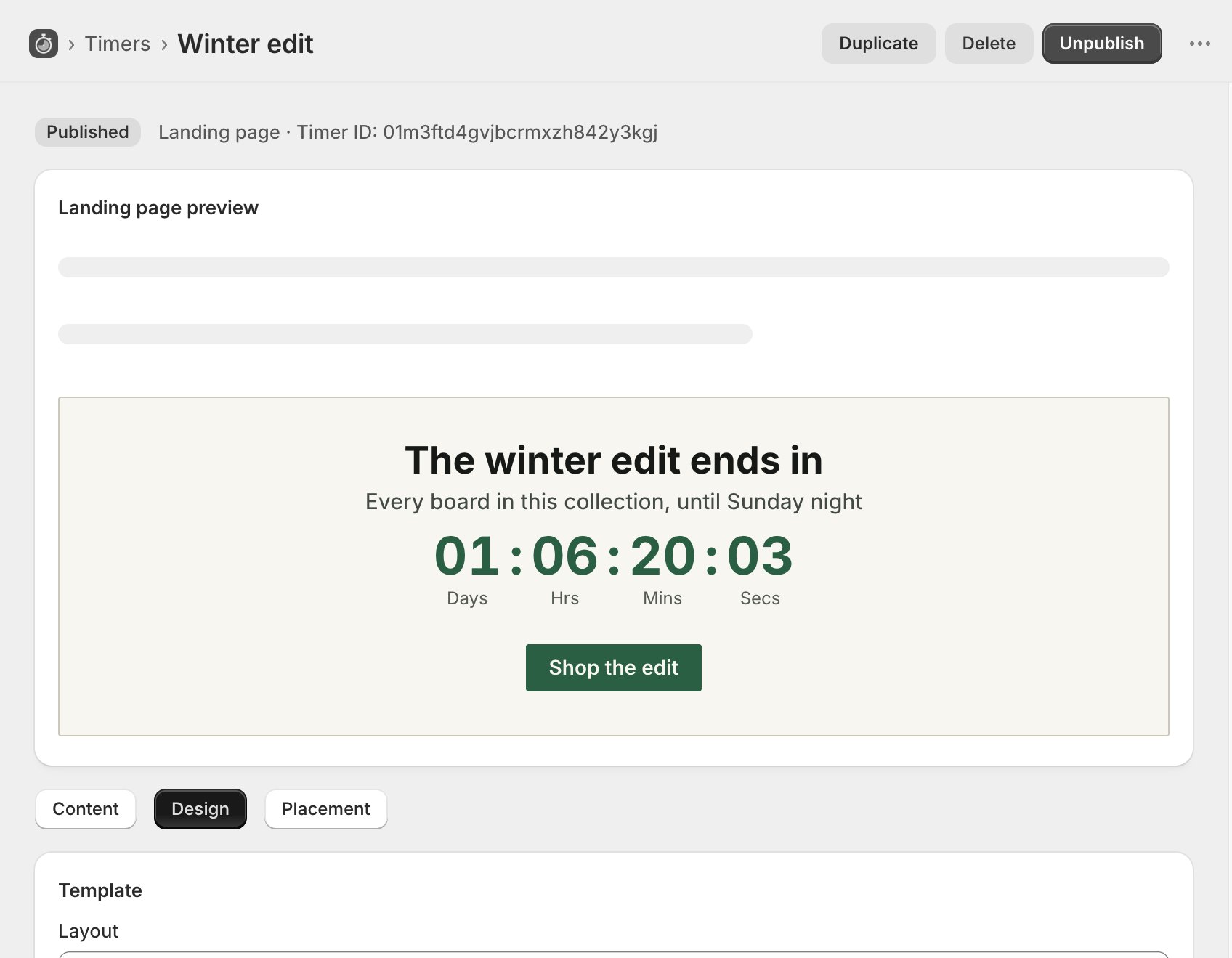
The TreStack Timer editor in grayscale, on the Design tab of a landing page timer, with its live preview in green and paper colours

Analytics

Five numbers per timer

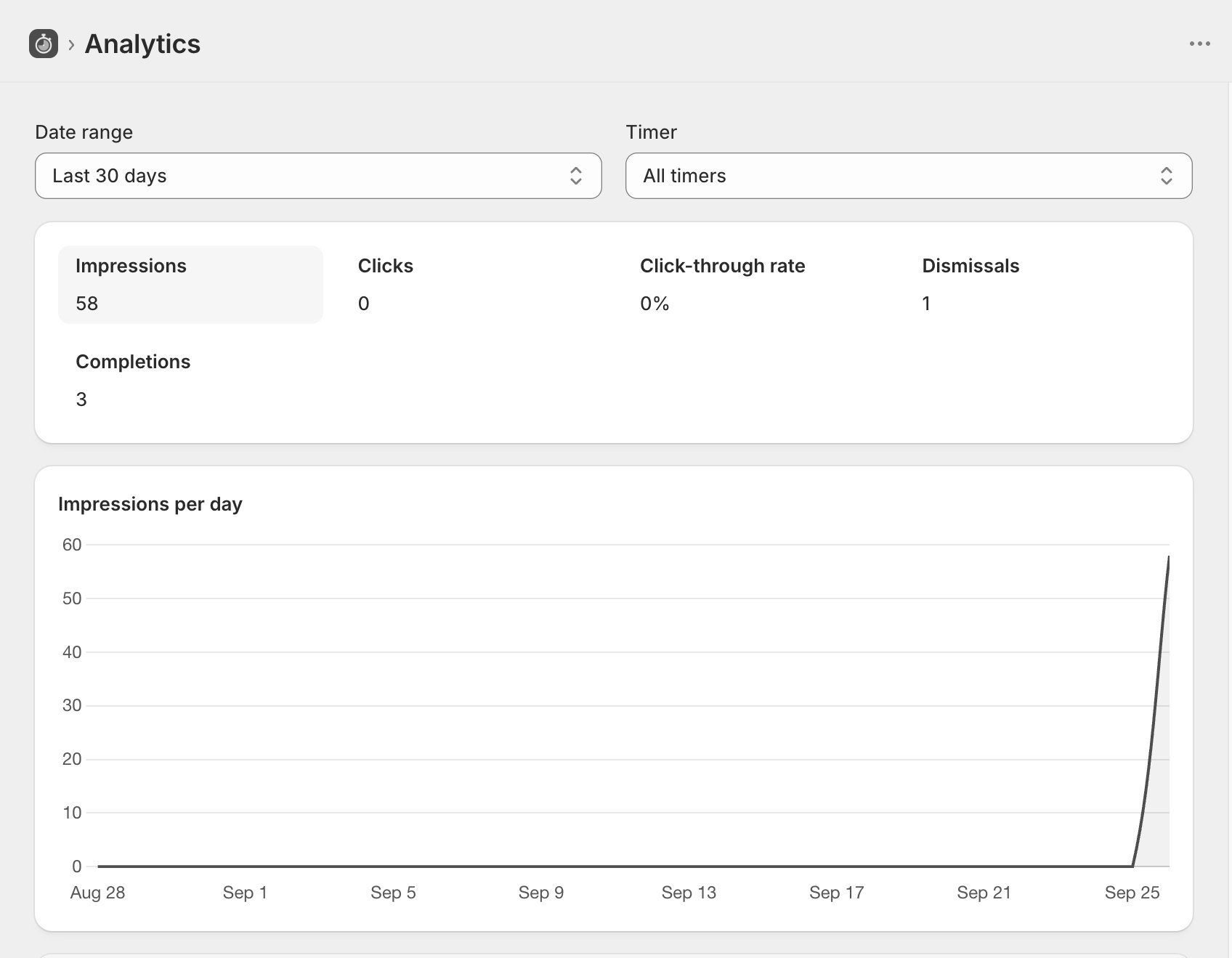
Impressions, clicks, click through rate, dismissals when a shopper closes a bar, and completions when a timer reaches zero. Each timer has its own figures, filtered by the date range you pick.

The storefront sends a timer id and an event type, never a shopper identifier, and sets no cookies.

What is stored, in full
The TreStack Timer Analytics page in grayscale: impressions, clicks, click through rate, dismissals and completions, above a chart of impressions per day

Email timers, Growth plan

A countdown image for your campaigns

After you publish an email timer, the app gives you an HTML image snippet to paste into Shopify Email, Klaviyo, or any email tool that accepts HTML. Each time the email is opened, the image is rendered as 60 one second frames that play once, and opening the email again shows the time left at that moment.

Deleting an email timer breaks the image in emails you already sent. The app warns you before it does.

The TreStack Timer editor in grayscale, on the Design tab of an email timer, with a preview of the countdown image

No theme edits, no pasted code.

The app never asks you to paste code into your theme. Uninstall it and the app embed and blocks go with it, because nothing was written into your theme files.

  1. Step one

    Install from the App Store

    From the TreStack Timer listing. The app asks to read products, themes, and your store's languages, and to upload timer images to your Files. It has no access to orders, customers, or payments.

  2. Step two

    Turn on the app embed

    The app shows whether the embed is on, with a link that opens the right place in the theme editor.

  3. Step three, if needed

    Add an app block

    For a custom position, an Add app block link drops the block where you choose.

What it adds to your storefront.


  • Storefront script

    11.4 KB gzipped

    One bundle, measured on 2026-09-26, against a target of under 15 KB.

  • Lighthouse, mobile

    No measurable drop

    In the one test described below: no measurable drop in the performance score, the same layout shift, and the product image stayed the largest paint.

  • Fonts

    Only what is used

    A web font loads just the characters in the timer's own text.

  • Screen readers

    Read on arrival

    A screen reader reads the countdown as "14 Mins 05 Secs" when the shopper reaches it, not every second. The bar's close button is labelled.


The Lighthouse figure is one measurement on one theme: mobile, a product page on Shopify's Horizon theme with a top bar and a product timer using a background image and a web font, the median of five runs with the app and five without, taken on 2026-09-25. It is not a promise for every store. Your theme and your other apps decide the rest, so run the same before and after comparison on your own store.

Pricing

Plans differ in two ways only: which timer types and targeting you can publish, and how many timer views a month the plan covers. Every plan can create and edit every timer; a higher plan is only needed to publish one.

TreStack Timer prices in USD. 7 day free trial on paid plans, 20 percent off when billed yearly. Billed through Shopify, on the invoice you already get.
PlanMonthlyYearly, per monthTimer views a monthWhat this plan adds
Free$0$01,000Product page timers and a top or bottom bar across the store.
Starter$5.24$4.1910,000Landing page timers on collection pages, a scheduled start, and recurring daily or weekly timers.
Growth$7.49$5.9950,000Cart page and cart drawer timers, email timers, product tag targeting, country targeting, and translations.
Professional$22.49$17.99UnlimitedEverything in Growth, with no monthly view limit.

How views are counted, and what is never charged for

Before you install

Questions about themes, views, billing, and data

How views are counted, what happens at the monthly limit, what the app stores, and what happens when you uninstall.

Read the TreStack Timer FAQ

Support

Answered by the people who build the app

Write to [email protected], or use the live chat inside the app admin once it is installed.

Support