Documentation
Install steps, settings, and the notes a developer asks for.
The TreStack Timer docs, written for merchants first and developers second. Read the quickstart once, then the guide for the timer type you want.
Quickstart, four moves from install to a live timer.
No theme code and no developer. The app opens the theme editor at the right place for you, and it never asks you to paste code into your theme.
Step one
Install
From the TreStack Timer listing on the Shopify App Store. The permission screen asks for four scopes, and none of them reach orders, customers, or payments.
How install worksStep two
Turn on the app embed
The app Home shows whether it is on, with a button that opens the theme editor at the switch. Turn it on and save.
App embed and app blockStep three
Create a timer
Pick a type, set the countdown, and design it beside the live preview.
Step four
Publish
Then load the live page, and check it on a phone.
Extension type
Theme app extension
An app embed, plus an optional app block. No script tag, no theme edit.
Storefront code
One bundle, 11.4 KB gzipped
Measured on 26 September 2026, loaded with defer from the Shopify CDN.
Where settings live
In the app
The theme editor only holds the app embed switch and the optional app block.
Uninstall behaviour
Nothing left behind
The embed and blocks go with the app, because nothing was written into theme files.
Everything we have written down, by area.
Five areas: the install path, the timer guides, the performance and theme reference, account matters, then the two shapes a problem takes.
Each page carries the procedure, a settings reference, and a note on what to do when the procedure does not work. If the page you need is not here, ask and we will write it.

Start here
Getting started
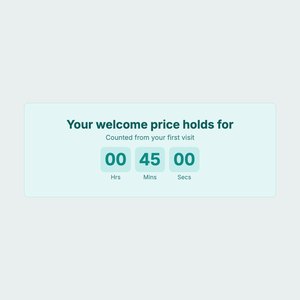
The install path, end to end, on a live theme, a copy of it, or a development store.
- Installing TreStack Timer
The four access scopes and why each is there, and what an install changes on your store.
- Turning on the app embed and placing the app block
The one switch every timer needs, and the app block for a custom position.
- Development stores and theme previews
Testing on a duplicate theme, and development stores billed in test mode.
- Installing TreStack Timer
Timer guides
TreStack Timer
What each timer type does, the settings that matter, and the defaults the app ships.
- TreStack Timer, setup and settings
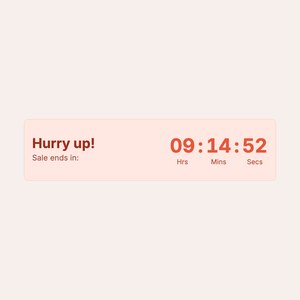
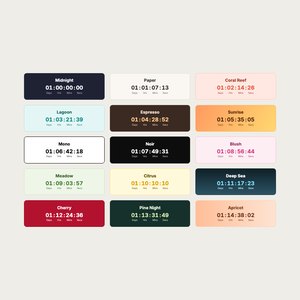
The five timer types, the countdown modes, what happens once a timer ends, and the design controls.
- Placement, countries, and translations
Where each type can show, page exclusions, which timer wins, and targeting by country and language.
- Cart page and cart drawer timers
A per visitor countdown while the cart has items, and the drawer selector for themes that need it.
- Email timers
The image snippet for your email tool, what it shows after the deadline, and why to unpublish rather than delete.
- TreStack Timer, setup and settings
Reference
Performance and themes
What the storefront code weighs, what a theme needs, and how several timers share a page.
- Performance notes
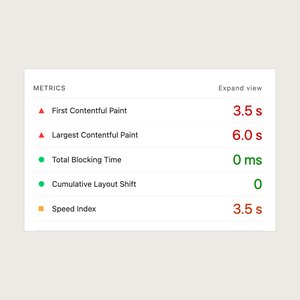
What loads and from where, one measured result on one theme, and how to measure your own store.
- Theme compatibility
What has been tested, older themes, page builders, and what to redo when you switch themes.
- Running several timers at once
One timer per automatic spot, the priority order, app blocks for extras, and shared views.
- Performance notes
Account
Billing, privacy, and data
Plans and views billed through your Shopify invoice, what the app stores, and leaving cleanly.
- Billing, trials, and plan changes
The four plans, the 7 day trial, what happens at the views limit, and what a downgrade does.
- Privacy and data, what the app stores
Store data, retention periods, and why nothing about shoppers is stored on our servers.
- Data processing and subprocessors
What passes through the app, the one named subprocessor, and where to find the DPA.
- Uninstalling TreStack Timer
What leaves the storefront, what happens to billing and data, and email timers already sent.
- Billing, trials, and plan changes
Troubleshooting
When something is wrong
Two failure shapes: the timer is missing, or it is there and looks or sits wrong.
- When the timer does not appear
The app embed, whether the timer is running right now, and whether the page matches.
- When the timer shows in the wrong place or looks wrong
Automatic spots, custom positions, fonts, bars and the page around them, and old versions.
- When the timer does not appear
When the timer will not behave
Six likely causes, starting with the one to rule out first. Each links to the longer page when a short answer is not enough.
No timer shows anywhere on the storefront
The app embed is almost always off in your live theme. The app Home shows its status and a button that opens the theme editor at the switch. Turning it on in a draft or a copy of the theme does not count, since each theme has its own.
The timer is published but not on this page
Check the placement and exclusions against the page, then whether another timer of the same type wins there, since one product timer, one bar, and one landing timer show per page. A timer set to Custom position shows only inside an app block that holds its Timer ID.
The timer vanished at zero
That is the Once it ends setting doing its job. A countdown to a date is set to unpublish itself by default. Choose Show custom title or Do nothing in the Content tab if you want it to stay.
The cart timer is missing from the cart drawer
A cart timer shows only while the cart has items. If it shows on the cart page but not in the drawer, set the Cart drawer selector on the app embed in the theme editor, or send us the store URL and we will find it.
Publish is blocked with an upgrade message
The timer uses something a higher plan covers, and the message lists what, or the store has used its monthly timer views, in which case timers are paused on the storefront until next month or an upgrade.
The deadline is an hour out
Dates run in the timezone set in your Shopify settings, not the one on your computer. Daylight saving is the usual cause. Fix the timezone in Shopify rather than moving the deadline, and the app picks the change up by itself.