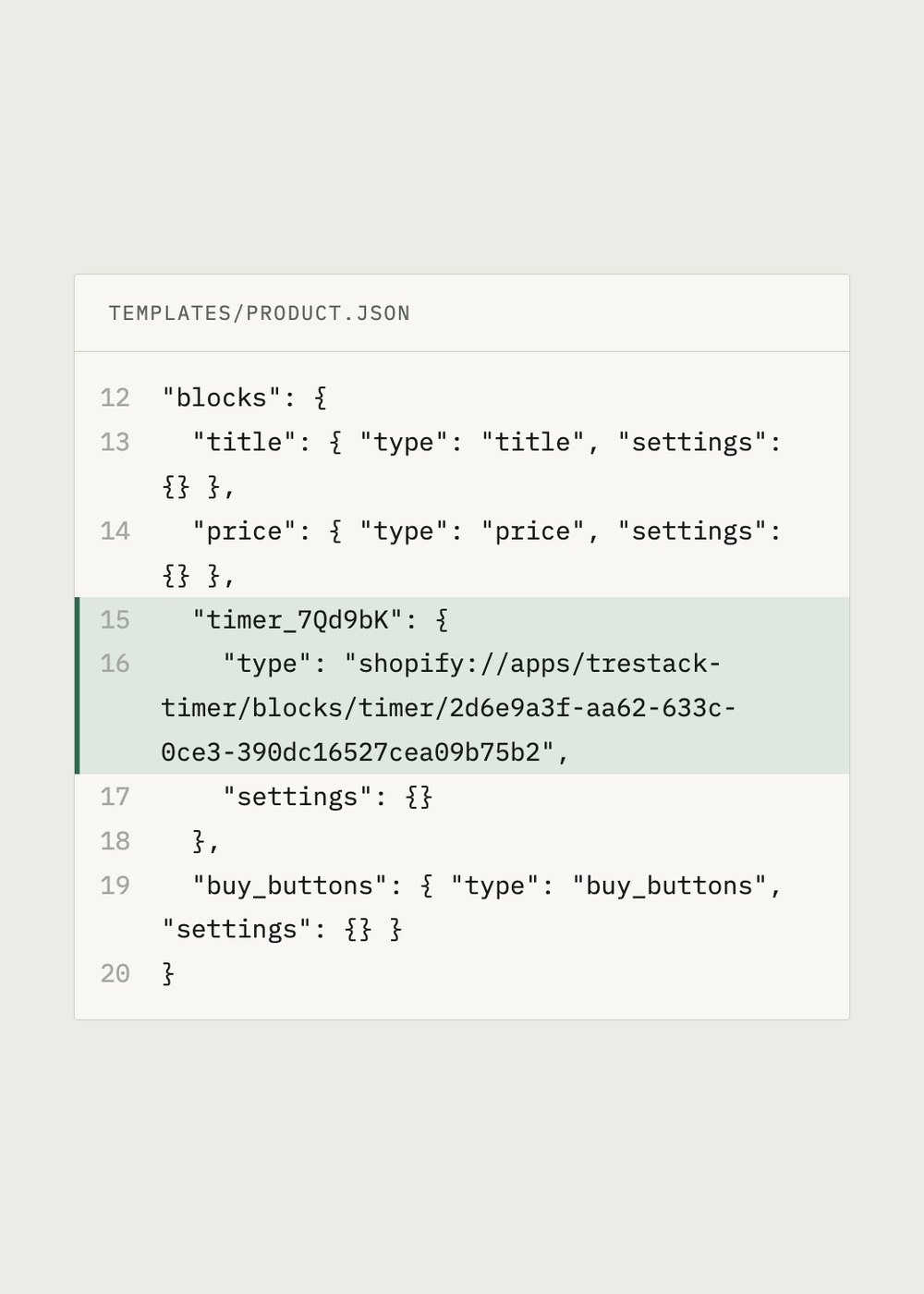
Why app blocks survive an upgrade and snippets do not
On an Online Store 2.0 theme, the placement of an app block lives in the JSON template for that page, together with the settings you chose. A theme upgrade replaces theme files. If you install a new version of your theme rather than editing the current one, the new version arrives with its own templates, which means it arrives without your app blocks. Nothing is broken, but nothing is placed either.
A hard coded snippet is the worse case. If an app, a developer, or a support agent added a line of Liquid to a section or to theme.liquid, that line exists in the old theme files only. The new version will not have it and the app has no way to know. Your store keeps working and the feature quietly stops appearing, which is the failure mode nobody notices for a fortnight.
Before you touch anything
Write down what is on the live theme while it is still live. Open the theme editor, walk the templates you care about, and list every app block by page and by position, including any setting you changed from its default. Screenshots of the editor sidebar are faster to take than notes and harder to misread three days later.
Then duplicate the theme so there is a copy you can return to, and note the version number of what you are upgrading from. Duplicating is instant and free, and the library holds plenty of unpublished themes. Also check Theme settings for App embeds, because embeds are toggled there rather than placed in a section and they are the easiest thing to forget.
The upgrade itself
Add the new version as a new unpublished theme rather than editing the published one. Shopify offers an update path for the free themes it maintains, and a paid theme usually means downloading the new version from the vendor and adding it from a file. Either way it lands unpublished, which is the point.
Move settings first and placements second. Colours, typography, and layout choices live in theme settings, and most merchants find it faster to reapply them by hand than to move settings data between versions. Then place your app blocks from the list you made, page by page, in the same positions, and switch the embeds back on.
Preview on a phone as well as a desktop. Section groups and sticky headers behave differently between theme versions, and a countdown bar or a review summary that looks correct at 1440 pixels wide can collide with a sticky header at 390.
The other side
After you publish, check the three places that break most often: anything rendering above the fold, anything in the header or footer group, and the cart. Then read the storefront for Liquid errors, which appear as a visible line of text beginning with the words Liquid error where a missing snippet used to be. That text is your list of hard coded leftovers from the old theme, handed to you for free.
Keep the old theme in the library for a fortnight. Reverting is one click while it is still there and a reconstruction job once it is gone. If a vendor has to change something for you, that fortnight is also the window in which they can compare the two themes side by side.