Two ways an app reaches your storefront
A theme app extension is the modern route. The app publishes blocks, you place them in the theme editor, and Shopify serves the assets from its own CDN. The placement is recorded in your template, the code stays with the app, and your theme files are never edited. When the app is uninstalled the block stops rendering and takes its markup with it.
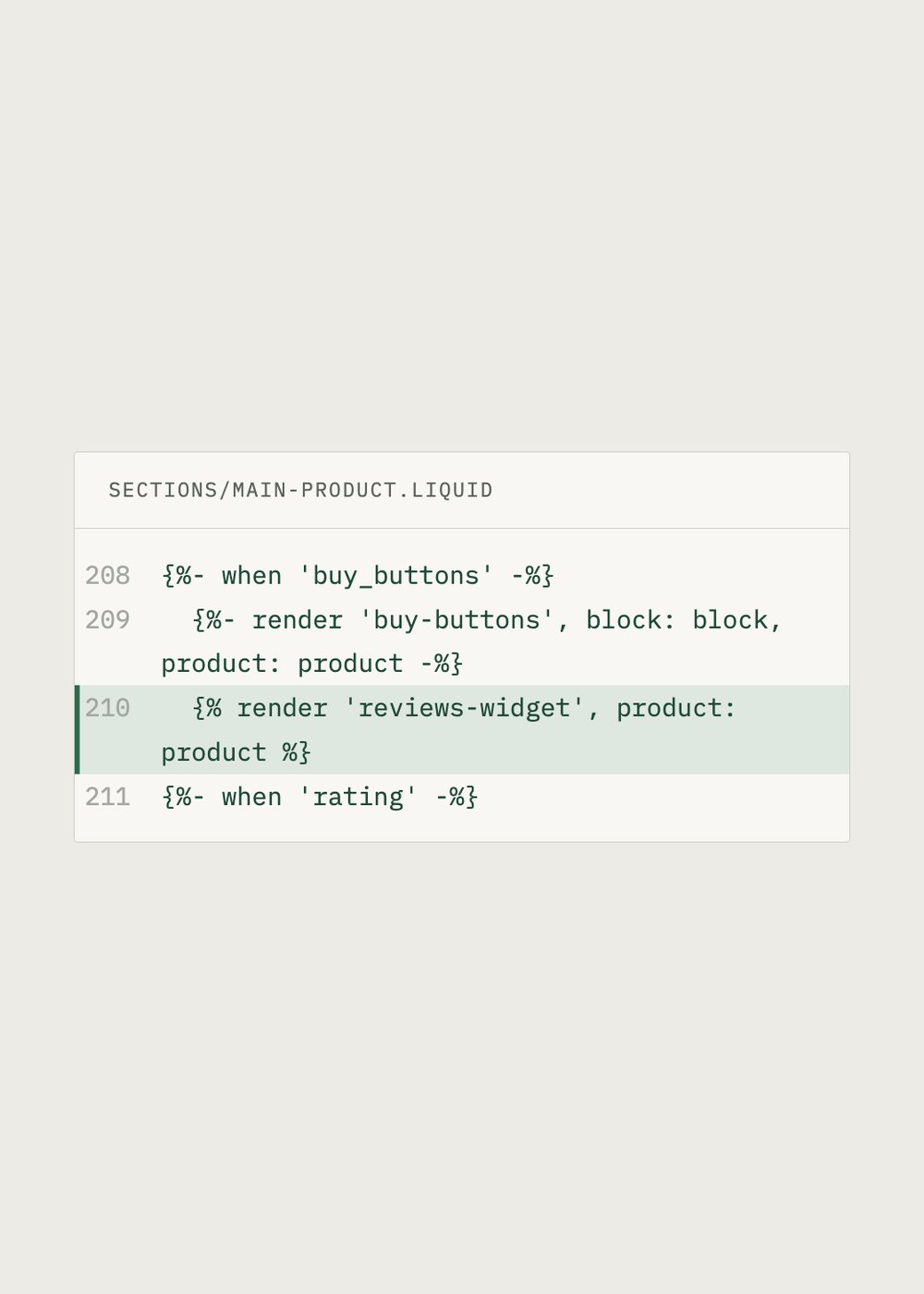
The other route is theme code. A vendor, an agency, or a support agent with editor access pastes Liquid into a section, a snippet, or theme.liquid. It works immediately and it is invisible in the theme editor, because as far as the editor is concerned it is simply part of your theme now. Which it is. That means it survives an uninstall and does not survive a theme upgrade, exactly the wrong way round.
How to tell which one you have
Start in the theme editor. Open a template, look at the section list, and try to add a block: if the app appears under Apps in the picker, it publishes app blocks. Some apps instead publish an app embed, which is toggled in Theme settings under App embeds rather than placed in a section, and is used for things that belong to the whole page. Both count as the modern route.
Then check the code. Online Store, Themes, Edit code, and search for the vendor name. A hit inside sections, snippets, or layout and theme.liquid means something was written into your theme. A hit that reads like a script tag pointing at an external domain is the same story with a worse ending, because that request is now on every page whether the feature is used there or not.
A third case looks like the second but is not residue. A page builder writes its own sections and templates into your theme by design, and that is how the tool works. It is worth knowing before an upgrade, because those templates are the ones a new theme version will not carry across.
What each one costs you
At upgrade time an app block costs you a placement job and a snippet costs you an investigation. At uninstall time a block costs you nothing and a snippet leaves a Liquid error where the file used to be. At debugging time a block can be hidden with one click by the eye icon, while a snippet has to be found before it can be turned off.
There is one honest advantage to theme code, and it is worth stating: it can go exactly where a block cannot, in the middle of a section whose author never opened that spot up. If you are living with a snippet for that reason, write down what it does and where it sits, and keep the note wherever the rest of your theme documentation lives.
Asking a vendor to move you
If an app you rely on still installs itself as a snippet, ask whether it publishes an app block or an app embed yet. Since Online Store 2.0 the answer is yes for most vendors, and the migration is usually three moves: delete the snippet, place the block, check the page. Ask before a theme upgrade rather than during one, when there is time for the answer to be no.
TreStack Timer is built as a theme app extension: an app embed you turn on in the theme editor, plus an app block for a custom position, with nothing written into your theme files. This page uses it as the worked example because it is the one we can describe from the inside. That is a statement about install mechanics, not a ranking. This hub does not publish a ranking of countdown timer apps, because we make one.